
While playing on the latest version of Minecraft offers the most up to date features, sometimes you just want to experience the old days again, or maybe you want to go for a modded server. This article will go over how to swap versions easily through our panel.
Swapping Minecraft Server Versions
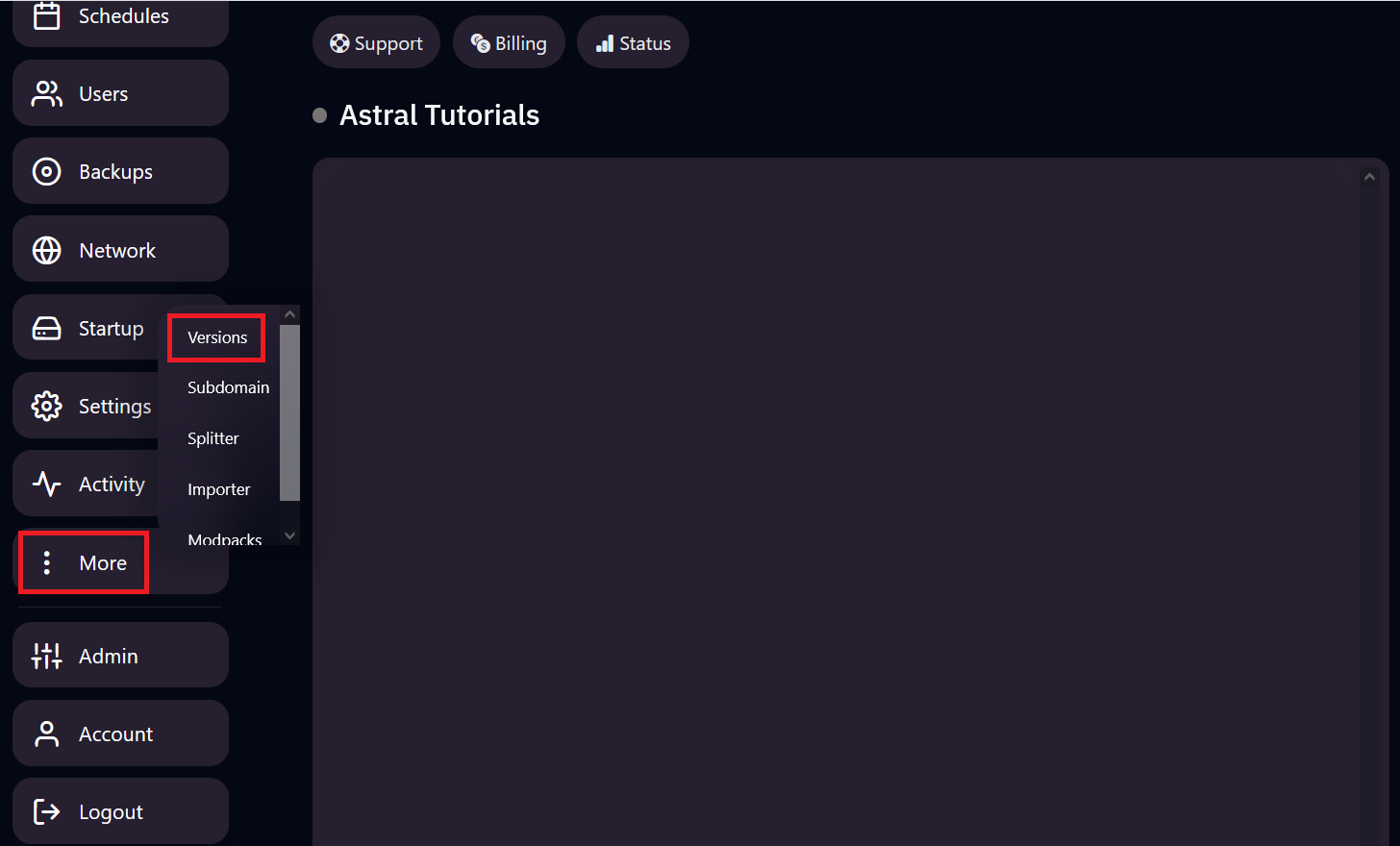
1. Head over to the "Versions" tab in your panel. It should be under the "more" tab.
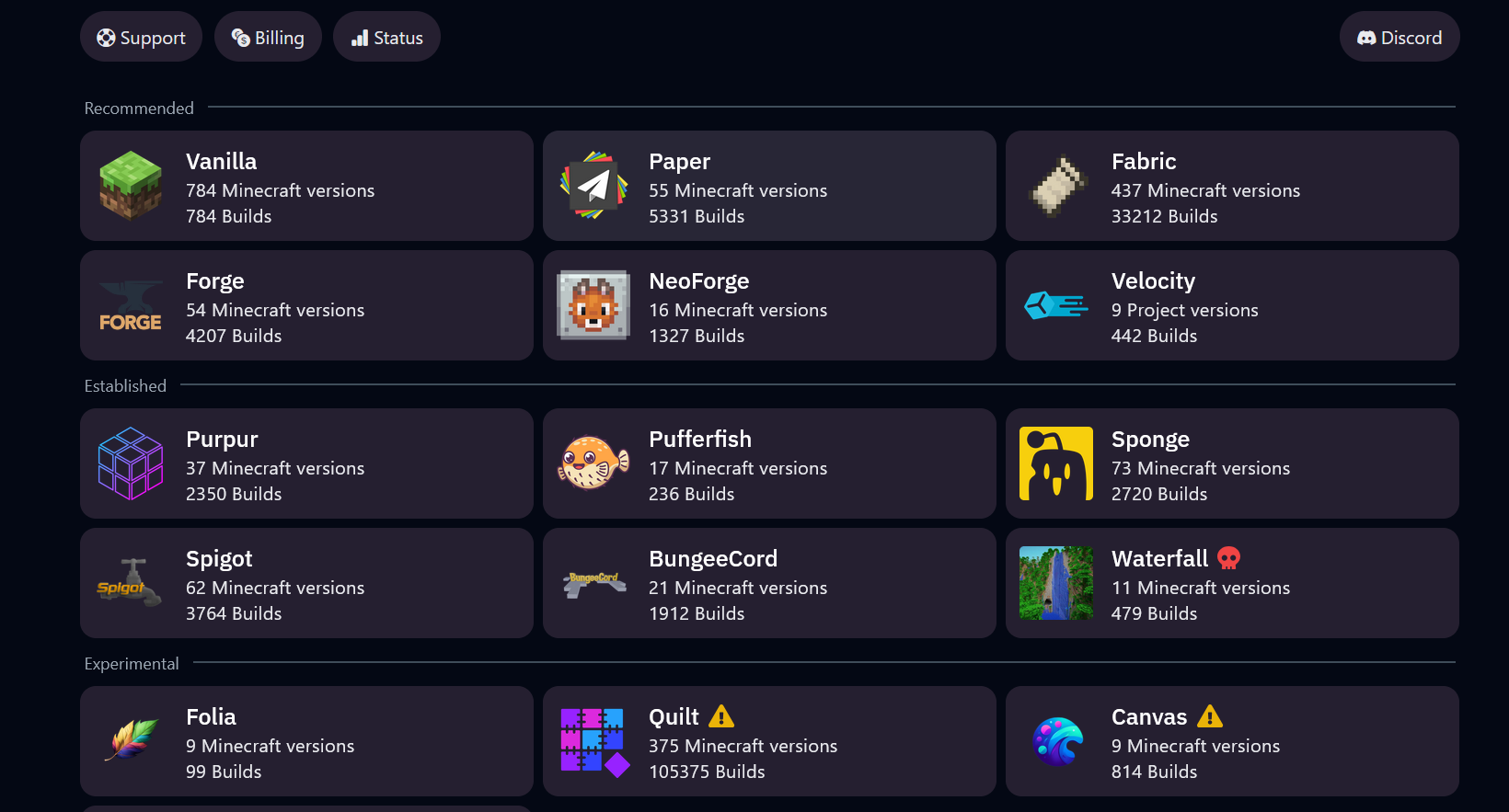
2. Here you should see every major Minecraft server type, including Forge, NeoForge, Fabric, and PaperMC. Simply select the one you would like to install.
3. Select the Minecraft version from the server type, such as PaperMC 1.20.1
4. Select the build number, we recommend you use the most recent build, but you can use older builds if you wish.
Optional Selections: The "Wipe Server Files" function will erase all files from your server and install the version you selected. Only select this if you are doing a clean install of your server. Support representatives are unable to recover erased files.
5. Once the version install is complete, simply launch your server and have fun!